Technical troubleshooting · production
AI App Works in Preview but Breaks in Production? A Complete Troubleshooting Guide
By Xroga Editorial · · 8 min read
Your AI-generated app looks correct in preview, but the public URL shows a blank page, broken login or server error. That does not automatically mean the app must be rebuilt. A disciplined comparison of the two environments often reveals the real problem.
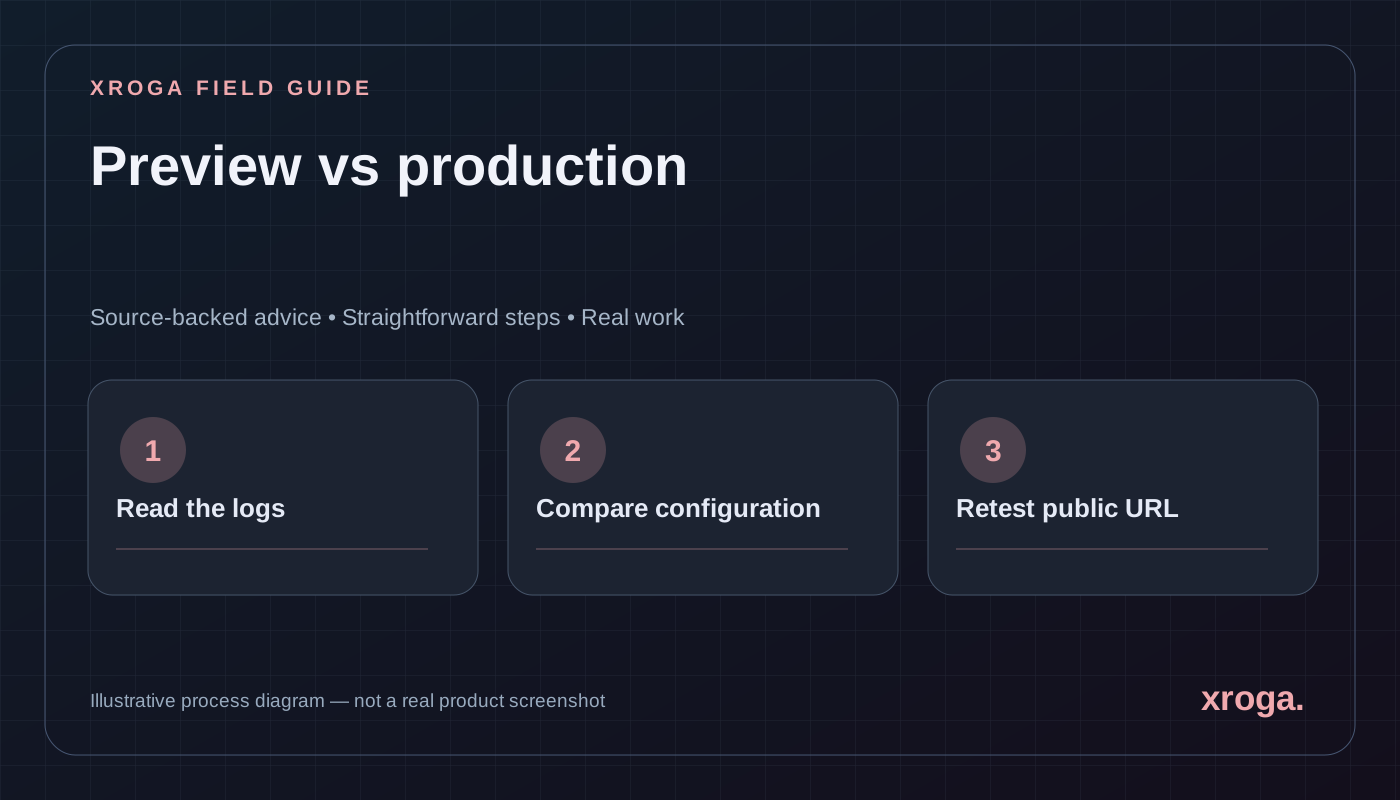
Editorially updated · 2026-11-20
Don't want to read the whole guide?
Get the idea in seconds, or continue with Xroga's AI assistant.
Find out whether the failure happens during the build, in the browser, or on the server. Check the deployed commit, logs, environment variables and login/data permissions before changing code.
The quick answers above are reviewed article summaries. The AI follow-up opens your Xroga workspace with a prepared prompt; it is not an automatic diagnosis or a background AI response.
01
Why preview and production behave differently
A preview is typically a deployment associated with a particular code revision or environment. Production serves the public domain and may have different variables, authentication settings, data, caching and permissions. Even with identical source files, the two environments can behave differently because they do not share every configuration value.
Don't assume the AI-generated code is wrong just because the app fails on a public URL. First determine which layer failed: compilation, the user's browser, a server function or an external service. That one distinction prevents many random rewrites and reduces the risk of introducing more bugs.
| Symptom | Check first | Possible problem |
|---|---|---|
| Build failed | Build log | Syntax, dependency or framework configuration |
| Blank screen | Browser console | Client exception or public environment value |
| API returns 500 | Server/function logs | Runtime exception or missing secret |
| Login loops | Auth callback and cookies | Production redirect not allowed |
| Database records missing | Network response + policies | Wrong project, RLS or role |
| Only public domain fails | Domain and deployment mapping | Old release, DNS or environment mismatch |
02
Verify the exact deployment and revision
Open your host's deployment dashboard and record the project, environment, branch, Git commit, build time and URL. The preview you tested might belong to a newer commit than the production release, or the public domain might point to an older deployment. This is a version mismatch, not necessarily a code bug.
When investigating, record one reproducible request: which URL you opened, the time, the expected behavior and the exact observed result. If the issue is intermittent, note whether it occurs for a fresh browser session. Avoid sharing full session cookies, API keys or raw customer information with a debugging tool.
03
Separate build, browser and server errors
Build errors normally appear before a deployment becomes usable. Browser errors occur in the code running on the visitor's device; inspect the developer console and failed Network requests. Server errors are reported in hosting logs or API logs. A blank browser often hides an underlying network or JavaScript exception, so capture the first meaningful failure.
A 500 response means the server could not complete the request, but it does not identify why. The browser's status code should be paired with server logs using a timestamp or request identifier. Resist fixing unrelated UI components until you know which layer actually failed.
- Reproduce
Open the failing public URL in a fresh session and record the exact action.
- Inspect browser errors
Check Developer Tools Console and Network panels for the earliest failed request.
- Inspect server logs
Find the corresponding runtime exception or authorization failure in the host's logs.
- Compare revisions
Confirm the failed deployment actually includes the code you intended to publish.
04
Check production environment variables
Vercel supports separate Development, Preview and Production environments. A secret set for Preview is not necessarily available in Production, and changing a variable may require a new deployment. Confirm the variable names, target environments and whether the code expects the value at build time or runtime.
Never fix a missing production secret by moving it into a public frontend variable. In Next.js, values with the NEXT_PUBLIC_ prefix can be bundled into browser code. Public URL-like configuration may belong there; service-role credentials and private API tokens do not. Compare only presence, scope and safe non-secret configuration values in shared diagnostic reports.
| Variable type | Preview | Production |
|---|---|---|
| Public API base URL | Correct preview origin? | Correct public origin? |
| Server API credentials | Available server-side? | Available server-side? |
| Supabase project URL | Expected test project? | Expected live project? |
| Auth callback / SITE_URL | Preview hostname? | Exact public hostname? |
| Feature flags | Known test values? | Approved live values? |
05
Reproduce a production build locally where appropriate
Development servers often tolerate behavior that differs in an optimized production build. For a standard Next.js project with dependencies installed, use the scripts defined in its package.json to create a production build and launch the built app. If the build fails locally, investigate that error before chasing cloud-only configuration.
A local production build is not identical to hosted production. It may still use local keys, a local database or different network permissions. Use it to isolate build versus hosting differences, not as proof that all external services work.
npm install
npm run build
npm run start

# Open the local production URL and repeat the failing journey.
# Inspect console, network and server logs.
# Never print or commit production secrets.
06
Diagnose authentication redirects and cookies
A login can succeed at the identity provider but fail to return to your app if the production callback URL is not allowed. Compare the site's production hostname, Supabase Auth SITE_URL and additional redirect URLs, and any callback settings configured at Google, GitHub or another OAuth provider.
Be exact about protocol, path and hostname. A temporary preview URL and a custom domain are not interchangeable unless configured intentionally. Also inspect secure-cookie behavior and whether server and browser handlers agree on the session. Test a new login and sign-out flow after the change, not only a tab that was already authenticated.
07
Investigate database and authorization failures
If data loads in preview but not in production, confirm which database each environment uses, whether tables and migrations exist and whether access-control policies are correct. A missing row is not always an empty database; Row Level Security can intentionally hide unauthorized records.
Never disable Row Level Security or expose a privileged key to make a request appear successful. Instead test with an ordinary signed-in account, inspect the query and policy, and verify whether the requested record belongs to that user. A production fix should preserve the intended security model.
08
Fix the smallest verified cause and retest
Once you've identified a concrete cause, make one focused correction: add an environment value to the correct scope, fix a callback URL, apply a reviewed migration, or repair the failing code path. Redeploy only when required. Keeping the changes small makes it easier to see whether the repair worked.
Then test the exact failing action on the public URL and at least one adjacent user journey. A successful deployment status does not prove the customer workflow works. Document the version, checks completed and anything still unverified. If the fix introduced another problem, your version history should provide a safe rollback.
- Save the original evidence
Keep the failing URL, logs, deployment ID and Git commit together.
- Apply one change
Choose the smallest correction supported by logs and project behavior.
- Deploy to the correct environment
Confirm the host built from the intended revision and used the expected variables.
- Run a public smoke test
Verify login, the failed interaction and normal-user permissions at the actual production URL.
- Document limits
Record which checks could not be run and what monitoring is needed.
09
A reproducible incident report makes debugging faster
An incident report should name the public URL, deployment ID, expected action, observed failure, first relevant log, and whether the problem affects everyone or a particular role. This information turns 'it is broken' into a testable problem. It also helps separate multiple simultaneous issues that may look similar in the browser.
Record what changed immediately before the failure: a new environment variable, dependency version, authentication provider, database migration or domain configuration. Correlation is not proof of cause, but a precise timeline helps prioritize experiments. Do not include raw access tokens, personal data or complete secret values in the report.
After resolving the incident, document the root cause and preventive check. For example, if Production lacked a required variable, add a safe deployment validation that checks for the variable's presence without printing it. This reduces the chance that the same configuration problem returns.
010
Understand the difference between build-time and runtime failures
A build-time failure stops the application before it is ready. A runtime failure happens when a deployed application processes an actual request or browser interaction. Some configuration values are read while building, while others are read when a server function runs. The appropriate repair depends on which moment the value is consumed.
In Next.js, browser-exposed environment variables may be bundled during the build. Changing the hosting dashboard later does not necessarily update a previously built client bundle. A new deployment may be needed. Server-side values also depend on environment targeting, function configuration and the host's deployment behavior.
Use this distinction to avoid noisy fixes. If the production page loads but one API call fails, a full frontend reinstall is unlikely to be the first useful action. If the build fails due to an incompatible dependency, changing OAuth URLs will not help.
011
How caching and stale assets can confuse the investigation
Sometimes a visitor receives an older page or JavaScript asset while the deployment dashboard shows a newer version. Confirm the actual response and deployment identifier before diagnosing source code. Use a fresh session or an appropriate cache-bypassing check, but avoid telling users to clear caches as the only fix for a reproducible server error.
Browsers and CDNs can cache different resources according to their configuration. A stale redirect, service worker or outdated client chunk can create symptoms that resemble runtime bugs. Compare affected and unaffected sessions, inspect response headers and use provider logs to determine which version served the request.
If the problem is tied to cached content, fix the caching or deployment strategy rather than repeatedly changing application code. Any cache purge should be deliberate because it can affect performance and traffic; do not use it as a default first step.
012
Database migrations and missing production schema
A common class of failure occurs when code expects a column or table that exists locally but was never added to production. The frontend may render until it submits a record, then the database rejects the query. Confirm migration history in the correct database and inspect the actual server error before applying schema changes.
Never run an unreviewed destructive migration to silence an error. Compare the expected schema with the deployed database, check backups and plan whether existing records require transformation. For systems used by real customers, stage the migration and ensure the application is compatible throughout the release sequence.
After a migration, repeat the end-to-end task that failed. Validate both successful and unauthorized operations. A new schema that fixes a missing column but accidentally relaxes access controls is not a safe repair.
013
Create a production smoke-test habit
A smoke test is a small set of essential actions after every deployment. For a customer portal, that might mean signing in, loading an authorized project, uploading a small test file and signing out. For a marketing site, it might mean loading key pages and submitting a test contact request. Choose tests that reveal business-impacting failures, not just whether the home page returns 200.
Keep the tests reproducible and use synthetic data when possible. Record the deployment identifier and test environment; a green smoke test against Preview does not confirm that Production is healthy. If a third-party integration cannot be exercised safely, label it unverified and monitor its first real uses closely.
An AI coding agent can help prepare or execute approved checks in supported environments. It should return observed evidence, explicit failures and missing permissions instead of reporting a deployment as successful because the code compiled.
014
Frequently asked questions about broken deployments
The fastest repair is usually the first verified cause, not the longest list of speculative fixes.
Does a green deployment mean my app works?
No. It indicates the deployment completed, not that every browser, authentication and database workflow has passed.
Should I rebuild the app from scratch?
Usually not before identifying the error. Rebuilding can reproduce the same missing configuration or access-control problem.
Can I put all environment variables in NEXT_PUBLIC_?
No. That prefix exposes values to the browser bundle. Private credentials must remain in trusted server-side storage.
Why does authentication work locally but fail on my domain?
Production callback URLs, cookie settings and provider configuration may differ. Compare the exact approved redirect URL and session handling.
Primary sources
Product capabilities change. These official pages were used for the factual statements above; verify them again before making a purchasing decision.